Best Next.js WYSIWYG Editors in 2026

In modern web apps, rich text editors (WYSIWYG editors) let developers build content interfaces that non-technical users love. For Next.js projects – especially blogs or content-heavy sites – choosing the right editor affects performance, developer productivity, and user experience. On one hand, editors like CKEditor or TinyMCE come with polished UIs and many features. On the other, headless or block-based editors like Tiptap, Lexical, or Editor.js offer flexibility and efficient data handling. We’ll compare top open-source and commercial editors, show minimal Next.js integration snippets, and highlight key pros/cons. Throughout, we point out real issues (SSR workarounds, bundle size, React integration quirks) so you can choose confidently.
Why WYSIWYG Editors Matter: A good rich-text editor democratizes content creation. It abstracts HTML and styling so content creators can focus on writing or designing layouts visually. For developers, an editor should integrate well with React and Next.js: it must support server-side rendering or be easy to load client-side, handle large documents without lag, and emit content in a form you can store (HTML, JSON, Markdown, etc.). Poor editor choices can bloat your bundle and slow your app. For example, a monolithic editor might generate excess HTML or rely on complex DOM operations, impacting load times. On the flip side, a lightweight or headless editor can keep things snappy but may require more setup. We’ll look at several editors with real-world trade-offs in mind.
Tiptap (Open-Source, Headless Editor)
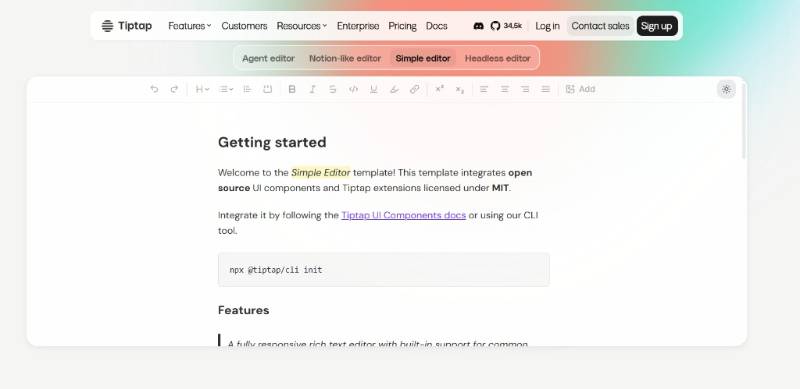 Tiptap is a headless rich-text framework built on ProseMirror. It’s fully open source (MIT) and built for developers. You get a minimal core and add only the extensions you need (images, tables, code blocks, etc.). Tiptap’s flexibility and mature ecosystem make it a popular choice in Next.js apps. Notably, Tiptap can handle very large documents (the team notes it can edit “an entire book”).
Integration: Use
@tiptap/reactin a client component. In Next.js (App Router), mark your editor file with'use client'. To avoid SSR issues, disable immediate rendering. For example:'use client'; import { useEditor, EditorContent } from '@tiptap/react' import StarterKit from '@tiptap/starter-kit' export default function MyEditor() { const editor = useEditor({ extensions: [StarterKit], content: '<p>Hello, world!</p>', immediatelyRender: false // defer until on client to avoid SSR }) if (!editor) return null return <EditorContent editor={editor} /> }This approach prevents hydration errors.
Pros: Very extensible (add or write plugins), headless control (you style it with Tailwind or your CSS), solid performance if you isolate the editor component. Tiptap has great TypeScript support and a global community. Since it’s headless, you define the UI (menus, toolbars) yourself – good for custom experiences.
Cons: Setup is heavier than “out-of-box” editors. Some official UI components (pro toolbar, etc.) are closed-source with a paid plan. Integrating with Tailwind CSS can be tricky; e.g. Tiptap may generate extra
<p>wrappers which conflict with Tailwind’s typography classes. Also, you must manage SSR details (as above).When to use: Ideal if you need a fully-customizable editor. Great for blog platforms or admin UIs where you control the look and feel. If you need real-time collaboration or Markdown support, there are Tiptap plugins or community extensions. Its performance guidance stresses isolating the editor to avoid re-render thrashing. For most Next.js use cases, Tiptap strikes a balance between power and control.
Editor.js (Block-Based JSON Editor)
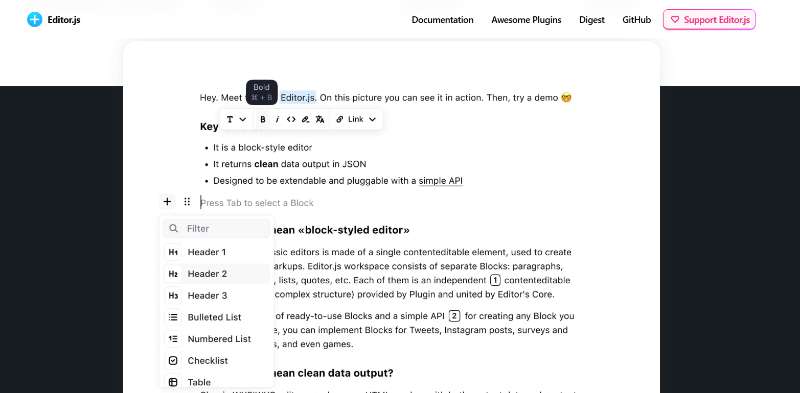 Editor.js is a block-style editor that outputs clean JSON data (each paragraph, image, or embed is a separate block). Unlike traditional WYSIWYG, it’s storage-friendly: your CMS or Next.js app can render each block as needed. Editor.js itself is unopinionated about UI – it provides an editable
 <div> with a toolbar for block insertion.
Integration: In React/Next, use a React wrapper like
react-editor-js. Import it dynamically on the client to avoid SSR. For example:import dynamic from 'next/dynamic' const EditorJS = dynamic(() => import('react-editor-js'), { ssr: false }) function BlockEditor({data, onChange}) { return ( <EditorJS onInitialize={instance => { /* store instance if needed */ }} tools={{ header: HeaderTool, list: ListTool, image: ImageTool }} data={data} onChange={() => onChange(editorInstanceRef.current.save())} /> ); }Notice the
{ ssr: false }– Editor.js relies on the DOM, so you must load it client-side.Pros: Excellent for structured content and avoiding HTML bloat. You get JSON like
{ blocks: [ {type: 'paragraph', data: {text: '...'}}, ... ] }which is easy to store or transform (e.g. to HTML on render). It’s open source (Apache-2.0) and many free plugins are available. It’s lightweight core (the page shows it’s fairly compact).Cons: Almost no built-in UI beyond basic block toolbar, so you’ll code any custom UI. Out-of-box styling is minimal. Also, Editor.js isn’t a full React component (it’s vanilla JS under the hood), so you’ll manage it via a wrapper. Content rendering on the site side requires iterating block JSON (no WYSIWYG HTML to fall back to). SSR: as shown, you must skip SSR (and handle loading indicators).
When to use: Perfect for a Next.js blog where each block is a React component (e.g. one block for heading, one for code snippet). If you need to migrate content easily or have a NoSQL/JSON backend, its output is ideal. It’s also good for static site generators or hybrid apps, since you store editor data and render after build. For simple rich-text needs, it might be overkill, but it shines for modular, app-driven content.
Lexical (Meta’s Editor Framework)
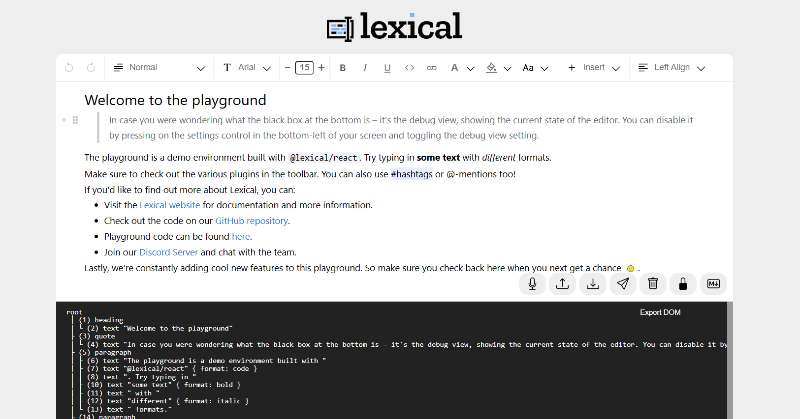 Lexical is Meta’s open-source rich-text framework. It’s more like a text editing engine than a finished editor, focusing on performance and extensibility. Facebook and Instagram use Lexical internally, so it’s proven at scale. Lexical provides a React-based UI library, but you build out most features via plugins and nodes.
Integration: Use
@lexical/reactcomponents in a client component. A simple setup might be:import { LexicalComposer } from '@lexical/react/LexicalComposer'; import { RichTextPlugin } from '@lexical/react/LexicalRichTextPlugin'; // ... other plugins like ListPlugin, LinkPlugin, etc. function MyLexicalEditor() { const initialConfig = { theme: {/* CSS classes */}, namespace: 'MyEditor', onError: (err) => { console.error(err) }, }; return ( <LexicalComposer initialConfig={initialConfig}> <RichTextPlugin contentEditable={<ContentEditable />} placeholder={<Placeholder />} /> {/* Add toolbars or more plugins (history, lists, images) */} </LexicalComposer> ); }(This goes in a
'use client'file under app/ or pages/.) As with others, Lexical is client-only, so either use the App Router’s'use client'or dynamic import.Pros: Very fast and lightweight core – Meta designed it to be minimal, so by default it’s just an empty engine. Accessibility and internationalization are first-class. Built-in TypeScript support and strong typings help avoid runtime bugs. Because it’s so flexible, you can implement exactly the editing behavior you want (even custom node types). The ecosystem (official plugins for lists, tables, etc.) is growing, and the playground has many examples.
Cons: Lexical is a framework, not a plug-and-play editor. You’ll spend more time wiring up features (e.g. bold/italic, or drag-drop images). Documentation is improving but can feel scattered. There’s no visual toolbar by default; you’d need to create or integrate one. It’s also fairly new compared to others – mature but fewer community resources than say Quill or CKEditor.
When to use: Great if you need maximum control and performance, and you don’t mind extra setup. For example, a startup building a collaborative document app or a very custom blog editor. It’s also ideal if you’re comfortable with TypeScript/React and want fine control over serialization/versioning. For a solo dev, Lexical’s learning curve is higher, but it pays off with stability and speed in large apps.
React-Quill (Quill) – Simple and Open-Source
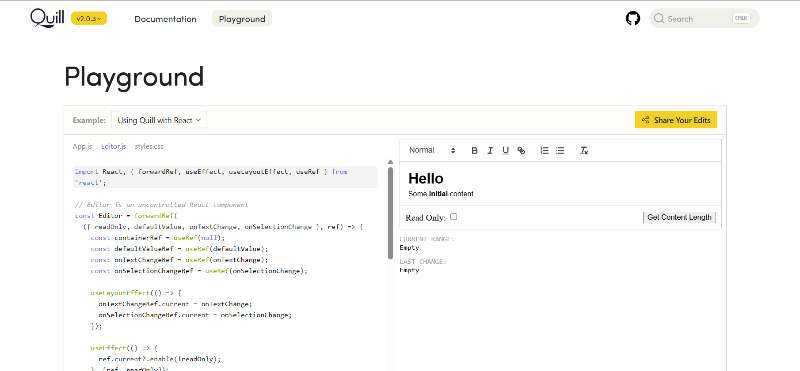 Quill is a widely-used open-source WYSIWYG editor, and react-quill is a React wrapper for it. It provides a simple toolbar and a “snow” or “bubble” theme.
Integration: Since Quill depends on the browser, load it client-side in Next.js. E.g.:
import dynamic from 'next/dynamic';
const ReactQuill = dynamic(() => import('react-quill'), { ssr: false });
function SimpleEditor() {
  const [value, setValue] = useState('<p>Hi</p>');
  return <ReactQuill theme="snow" value={value} onChange={setValue} />;
}
This pattern ensures SSR is disabled, as seen in community tips. (Note: this GitHub comment suggests SSR issues if you don’t.)
Pros: Easy setup and free. The editor UI is straightforward, and basic formatting (bold, lists, images) works out-of-the-box. It’s less code-heavy than enterprise editors. Because it’s old-school, there’s lots of community knowledge (plenty of StackOverflow answers).
Cons: Quill hasn’t been actively updated in some areas; you may find features like table support or custom embeds lacking. It also struggles with advanced styling – for instance, it may not preserve inline styles or complex nested tags perfectly. Image resizing, links, or keyboard shortcuts might need plugins. If your site uses Tailwind, you might fight with Quill’s generated markup. In general, expect to do some CSS overrides. Also, Quill’s internal structure (embedded
<span>s for styling) can produce less-semantic HTML.When to use: Use React-Quill for simple use cases or prototypes. It’s fine for a small blog editor or a comment box with basic formatting. It’s not ideal for a polished end-user CMS unless you customize it heavily. For early-stage projects with minimal editor needs, Quill’s simplicity can be a plus.
CKEditor 5 – Enterprise-Grade Editor
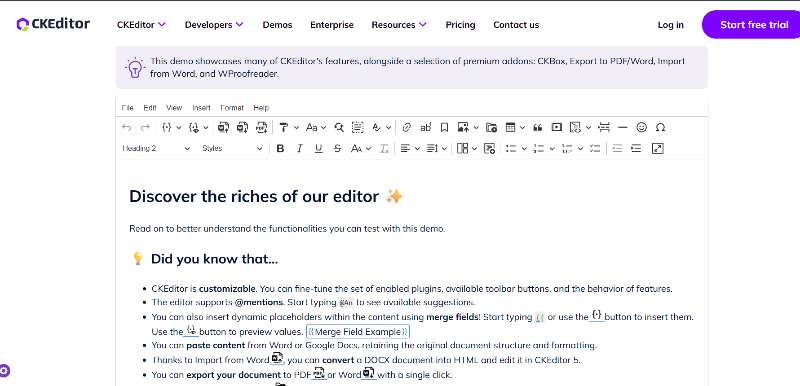 CKEditor 5 is a full-featured commercial-grade editor. It offers rich toolbars, collaboration features, and both open-source and paid plugins. In 2025 the team worked hard to make builds slimmer, but it’s still one of the heaviest editors.
Integration: CKEditor 5 is client-side only. The official guide shows a Next.js setup where you mark your component as
'use client'and dynamically import the editor. In short, use the React component from@ckeditor/ckeditor5-react, and load it withdynamic(..., { ssr: false }). For example, the docs wrap their custom editor:// components/ClientSideEditor.js import dynamic from 'next/dynamic'; const CKEditor = dynamic(() => import('@ckeditor/ckeditor5-react').then(mod => mod.CKEditor), { ssr: false }); // Then use <CKEditor ... /> in JSX.The key is disabling SSR as noted in the CKEditor guide.
Pros: Rich feature set. There are official plugins for tables, math, media, checklists, real-time collaboration, and more. It has a polished UI and strong documentation. Many mid-to-large teams use it, so it’s battle-tested. The 2025 CKEditor blog highlights ongoing improvements (bundle optimizations) and ease of installation for various frameworks, and specifically mentions it can be used in Next.js apps (via npm or CDN).
Cons: Large bundle size by default. Even after tree-shaking improvements, a CKEditor build can add significant kilobytes. Configuration can be complex (you often build a custom bundle on their site). Many advanced features require a license (for example, Real-time Collaboration or track changes). If you only need basic editing, CKEditor may feel like overkill. Also, since it’s GUI-heavy, it doesn’t give full “headless” control – it outputs HTML by default, so integrating with component-based content might be trickier.
When to use: When you need a serious out-of-the-box editor. If your startup demands robust document editing (e.g. a CMS for reports, or a SaaS where clients expect Word-like features), CKEditor is a top choice. For solo devs, be mindful of the configuration and license. In a Next.js blog, you’d mostly use the free core editor and stick to HTML content output.
TinyMCE – Mature Rich Text Editor
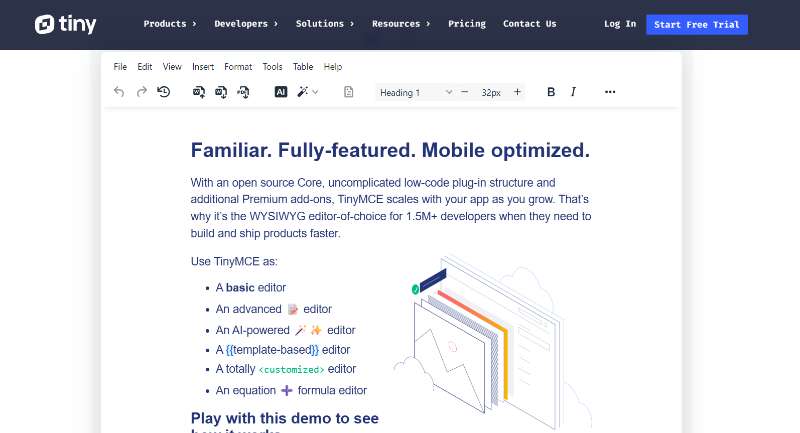 TinyMCE is another veteran in the WYSIWYG space, similar to CKEditor. It offers a React component and many community/contrib plugins.
Integration: Like CKEditor, use the React wrapper (
@tinymce/tinymce-react) and load it client-side (dynamic import). TinyMCE provides a cloud API key for hassle-free use, or you can self-host the scripts. Example:import dynamic from 'next/dynamic'; const Editor = dynamic( () => import('@tinymce/tinymce-react').then(m => m.Editor), { ssr: false } ); function TinyEditor() { return ( <Editor apiKey="your-tinymce-key" init={{ height: 400, menubar: false, plugins: ['link', 'lists', 'image'], toolbar: 'undo redo | bold italic | bullist numlist | link image' }} /> ); }No SSR, and style the editor via
initsettings or custom CSS.Pros: Proven and customizable. TinyMCE has an ecosystem of plugins (some free, some paid). It has good accessibility features and supports modes (e.g. inline editing). The editor’s API is stable, and documentation is solid. The community edition is free under LGPL.
Cons: Similar to CKEditor, it can be heavy. Out-of-the-box UI is not as modern as some newer editors (it can feel “legacy”). To fully customize, you may need paid plugins. Integration with React is straightforward but must follow Next.js SSR rules. Like other traditional editors, it outputs HTML which you’ll need to sanitize or manage in Next.js.
When to use: When you need a stable, full-featured editor but prefer TinyMCE’s interface or licensing over CKEditor’s. In many cases, TinyMCE is interchangeable with CKEditor for basic needs. It’s a solid default if you’ve used it before. For a startup wanting broad feature set with community support, TinyMCE is a safe choice.
At a Glance: Next.js WYSIWYG Editors Comparison
This table gives you a quick, side-by-side view of the most popular Next.js WYSIWYG editors in 2026, so you can match the editor with your actual project needs.
| Editor | Architecture Type | Output Data | License Model | Relative Weight* | Ideal Next.js Use Case |
|---|---|---|---|---|---|
| Tiptap | Headless (ProseMirror-based) | HTML / JSON | MIT core (Paid Pro extensions) | Modular / Medium | Fully custom editors, Tailwind-styled UIs, modern SaaS dashboards |
| Lexical | Headless framework | JSON (node tree) | MIT | Lightweight core | High-performance apps needing deep editor control and scalability |
| Editor.js | Block-based editor | Clean JSON blocks | Apache-2.0 | Lightweight core | Structured blogs, CMS-like content, component-driven rendering |
| React-Quill | Classic WYSIWYG | HTML | MIT | Medium | Simple prototypes, admin forms, basic comment editors |
| CKEditor 5 | Enterprise / Classic | HTML | GPL / Commercial | Heavy | Corporate CMS, Word-like editing, non-technical content teams |
| TinyMCE | Enterprise / Classic | HTML | LGPL / Commercial | Heavy | Mature projects needing stable, broad feature coverage |
Other Notable Editors
BlockNote: A newer open-source block-based React editor built on ProseMirror & TipTap. It includes a ready-made UI and Yjs collaboration. It’s 100% free/open-source (with paid support options). Consider it if you like Editor.js’s block model but want a more integrated UI (and if you need real-time co-editing out of the box).
SunEditor: A lightweight WYSIWYG React editor (~65KB minified). It has fewer bells but is easy to integrate. Good for simpler needs.
Slate.js & Plate.js: React frameworks for building editors (Slate is pure framework, Plate is a ready-made UI on top of Slate). These are very flexible, but require heavy implementation. Generally better for complex, highly-customized editors if you need fine-grained control.
Froala Editor (Paid): Commercial editor with a polished UI and performant code. If your startup can afford licenses, Froala (or similar paid editors) can save development time, since they handle image uploads, emojis, etc. out-of-the-box.
Toast UI Editor: A Markdown + WYSIWYG hybrid (has a React version). Good for blogs needing Markdown support and live preview.
Performance, UX, and SSR Considerations
Performance and bundle size are real concerns. As one tech blog points out, traditional WYSIWYG editors often generate extra markup (code bloat) and slow down initial loads. To mitigate this:
Load editors client-side: Use Next.js
dynamic()or'use client'so the editor code doesn’t execute on the server or bloat the HTML. (See above examples for dynamic imports.)Tree-shake or pick features: Only include necessary plugins. For instance, CKEditor 5 lets you build a custom bundle. Tiptap’s modular extensions mean you only import what you use.
Isolate the editor in its own component: Avoid re-rendering the editor unnecessarily (especially for Tiptap, which can re-render on every content change if not isolated).
SSR of content vs. editor: Often, you’ll render saved HTML or JSON on the server and only run the heavy editor in the client for editing. For example, you might fetch blog content and render it with React components on the page. The editor itself (and its state) can be loaded when the user hits “Edit”. This separation avoids hydration issues.
UX flexibility: Think about your UI needs. Block-based editors (Editor.js, BlockNote) let you create complex layouts (like a Notion-style page). Traditional editors (TinyMCE, CKEditor, Quill) are more linear (like a word processor). Tiptap and Lexical can be made to do either. If you need custom content nodes (e.g. embedded products, quizzes, etc.), headless editors will be easier to extend.
CMS integration: Some editors play nicer with headless CMS. For example, if you use Sanity or Contentful, their block/content models align with Editor.js or BlockNote. If you’re hand-rolling a blog admin, all of these can work, but you might favor an editor that outputs JSON so your Next.js API can process it.
Recommendations for Next.js Developers
New Projects / Full Control: Tiptap or Lexical. Both are highly extensible and powerful. Tiptap is quicker to start (lots of docs and community examples). Lexical is rock-solid for performance and customization.
Structured Content / Blogs: Editor.js or BlockNote. They output clean JSON and encourage a component-based render approach, which fits well with Next.js and Markdown styles.
Simple Use-Cases: React-Quill or SunEditor. If your formatting needs are basic, they get you up and running with minimal overhead.
Enterprise / Rich Features: CKEditor 5 or TinyMCE. Use these if you need drag-and-drop, comments, collaboration, or a lot of built-in styling options. Just be mindful of performance (lazy-load them).
Tailwind Projects: If you use Tailwind CSS, both Tiptap and Lexical (being headless) can integrate nicely with utility classes. Some users report quirks with Quill/Tiptap and Tailwind’s prose classes, so test your styling.
Internationalization/Accessibility: Lexical and CKEditor score high on accessibility. Tiptap and TinyMCE can be made accessible with proper config.
Final Thought: There’s no one-size-fits-all. For a solo dev or startup, weigh development effort vs. features. Tiptap gives a lot of control without paying for features, making it a popular starting point. Pair it with dynamic imports and isolation for SSR. If that feels too much work and you prioritize time-to-launch, something like React-Quill (for a blog editor) or CKEditor (for admin UIs) might be pragmatic. Always prototype early: try a minimal integration in your Next app to uncover any SSR or CSS issues, then iterate.